

Let’s be completely honest for a second: most apps promise to make our lives easier, but half the time they do the exact opposite. Tutorials You download something that claims it will “organize your entire life,” open it up, stare at a wall of unfamiliar icons, and immediately close it. Five minutes later, you’re still hunting through confusing sub-menus trying to figure out where that one basic privacy setting is hiding.
Here is the good news: you do not need to be a tech genius to make your phone work for you. Most popular apps aren’t actually complicated once you cut through the technical jargon and focus on the handful of buttons that actually matter.
Real-Life Faceoff: Default App Setup vs. The Tweaked Setup
| Feature Area | What Most People Do (The Default Trap) | The 5-Minute Human Adjustment | Why Your Sanity Will Thank You |
|---|---|---|---|
| Notifications | Leave every single alert on; phone buzzes 80 times a day. | Turn off all promotional and badge alerts; keep only direct messages. | Eliminates digital fatigue and stops your phone from constantly interrupting your focus. |
| App Permissions | Blindly tap “Allow All” when prompted during initial setup. | Restrict location access to “Only While Using” and revoke contact access. | Protects your personal data and stops background battery drain instantly. |
| Search & Organization | Manually scroll through hundreds of old chats, files, or photos. | Use built-in search filters (filter by sender, date, or file type). | Saves you endless scrolling and frustration when you need an old document fast. |
| Account Security | Use the same basic password across three different platforms. | Toggle on Two-Factor Authentication (2FA) via SMS or an authenticator app. | Stops automated hacking attempts from locking you out of your primary accounts. |
10 Essential App Habits That Make Tech Feel Effortless
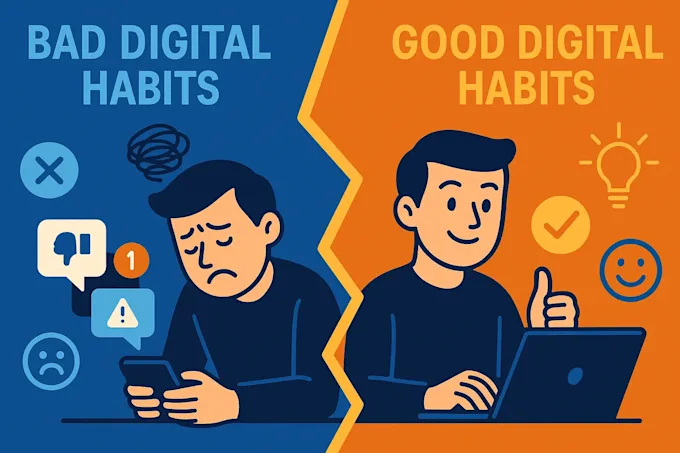
1. Audit the Settings First
When you install a new app, don’t immediately start tapping around the home screen. Take 30 seconds to tap the gear icon (Settings). Look specifically for Privacy, Notifications, and Data Usage. Taking one minute to turn off unnecessary marketing pings right after installing saves you months of annoyance.
2. Kill Notification Overload
If an app constantly demands your attention with random pop-ups, you don’t necessarily have to delete it. Head into your phone’s central notification menu, locate the app, and turn off “Allow Sound” or disable “Promotions.” Keep alerts active only for things that require immediate action, like direct messages or bank transactions.
3. Use Search Instead of Endless Scrolling
Stop manually hunting for things. Whether you are looking for an invoice in a banking app, an old photo from three summers ago, or an address sent in a chat, the top search bar is your best friend. Most search bars accept simple keywords like “PDF,” “receipt,” or a person’s name.
4. Review Privacy Permissions Regularly
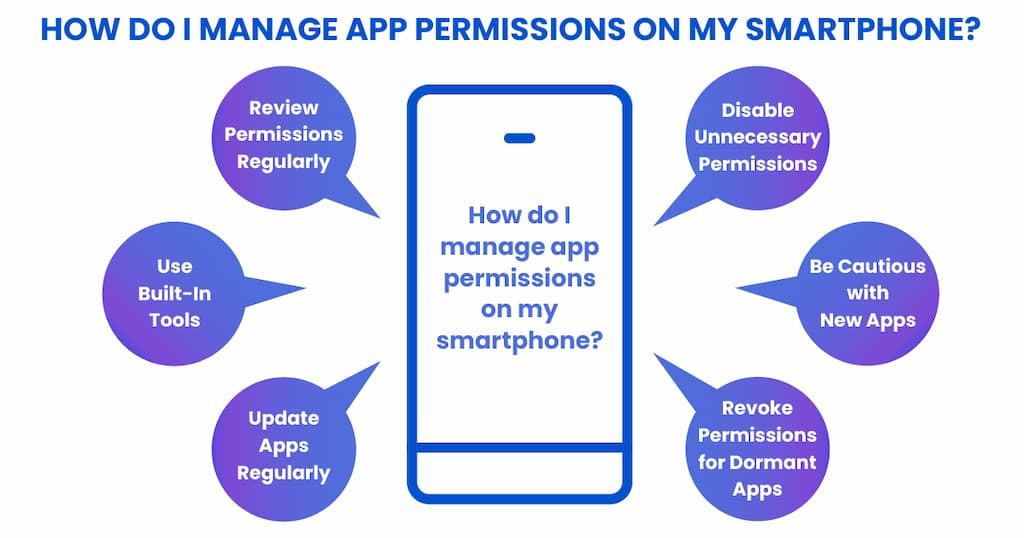
Does a basic flashlight app need access to your contacts or location? Absolutely not. Every few months, go into your phone settings and look at your permission manager:
- Change location access from “Always” to “Only While Using the App.”
- Turn off microphone or camera access for apps that have no business recording audio or video.
5. Turn On Two-Factor Authentication (2FA)
A single password isn’t enough to secure important accounts anymore. Turning on 2FA means that even if someone guesses your password, they still can’t log in without entering a temporary code sent to your phone or authenticator app. Turn this on immediately for your primary email, cloud storage, banking, and main social accounts.
6. Set Up Automatic Backups
Losing your phone is bad enough; losing ten years of family photos, work notes, and personal messages is a nightmare. Check your messaging and photo apps to make sure cloud backups are active over Wi-Fi. It takes two minutes to set up and saves a massive headache down the line.
7. Keep Photo Edits Simple
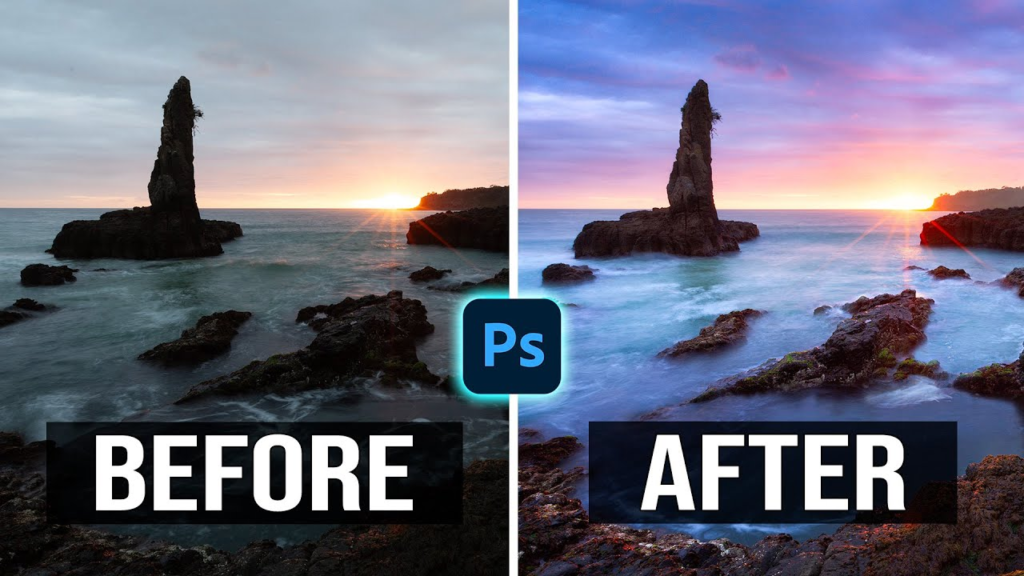
You don’t need professional design skills to make everyday photos look clean. When editing photos directly on your phone, avoid cranking every slider to 100%:
- Straighten tilted horizons first.
- Slightly boost the Shadows to bring out hidden detail.
- Keep Saturation subtle so colors don’t look artificial or neon.
8. Stop Over-Complicating Productivity Apps
Downloading five different task-management apps won’t automatically make you organized—it just gives you five more apps to ignore. Stick to one simple app and create four basic categories:
- Today (3 to 5 non-negotiable tasks max)
- This Week
- Personal
- Work
9. Learn Basic Gestures and Shortcuts
Most modern apps use intuitive gestures that save tons of time once you catch on:
- Swipe left or right on messages to quickly archive or delete them.
- Long-press on an app icon on your home screen to jump straight into specific actions like starting a search or taking a photo.
- Double-tap the top bar of your screen to instantly scroll back to the very top of a long page.
10. Enable Auto-Updates
App updates aren’t just about redesigns or new features; they carry critical security patches that keep your data safe from known vulnerabilities. Set your app store to automatically update apps over Wi-Fi so your phone stays secure in the background without requiring manual maintenance.
Real-World Scenarios: Fixing Common Tech Overwhelm
The “Group Chat” Nightmare
- The Problem: You get added to a family, neighborhood, or work project group chat. Your phone buzzes every 30 seconds with memes, side conversations, and thumbs-up emojis.
- The Human Fix: Mute the group chat indefinitely. In almost every messaging app, you can stay in the group without getting sound alerts, allowing you to catch up on your own schedule.
The Mysterious Vanishing Phone Storage
- The Problem: You try to take a photo or download a quick document, and your screen flashes: “Storage Almost Full.”
- The Human Fix: You rarely need to delete actual photos or files. Go into settings and clear the cached files inside high-use apps like social media, video streaming, or messaging platforms to wipe gigabytes of temporary junk.
The Cluttered Home Screen
- The Problem: Your phone screen looks like an obstacle course with 80 random icons scattered across four pages.
- The Human Fix: Keep only your top 4 to 6 daily apps (like Messages, Maps, Camera, and Phone) on your main home screen. Move everything else into your phone’s built-in App Library or simple folders.
The 4-Step Routine for Learning Any New App

Explore the Main Screen
Layout Basics
1.Explore the Main Screen:Layout Basics.
Open the app and identify the main navigation bar (usually at the bottom or side). Tap each main icon once to see where it leads without changing anything yet.
Check the Gear Icon
Control & Privacy
2.Check the Gear Icon:Control & Privacy.
Open Settings immediately. Turn off unnecessary notifications, review privacy toggles, and set your preferences before adding personal data.
Test One Core Feature
Hands-On Practice
3.Test One Core Feature:Hands-On Practice.
Try the main action the app was built for: send a test message, crop a single photo, or write one quick note to get comfortable with the interface.
Locate Search & Filters
Shortcuts
4.Locate Search & Filters:Shortcuts.
Find the search bar and test how it filters information so you know how to retrieve files or messages when you need them later.
The 10-Minute Sunday Digital Cleanup Routine
Minute 0-2: Uninstall 2 apps you haven't opened in the past month.
Minute 2-5: Go to your photos, sort by "Screenshots," and delete old receipts or parking codes.
Minute 5-8: Open your messaging apps and archive completed group chats or old OTP messages.
Minute 8-10: Check for any pending system updates and let them run over Wi-Fi.
Quick Reference: Phone Maintenance Cheat Sheet
| Task | How Often? | Where to Find It | What It Accomplishes |
|---|---|---|---|
| Clear App Cache | Once a month | Phone Settings -> Storage -> Individual App | Frees up several gigabytes of space instantly without losing real photos or data. |
| Audit Permissions | Every 3 months | Phone Settings -> Privacy & Security -> Permission Manager | Prevents apps from tracking your location or using your mic in the background. |
| Mute Group Chats | As needed | Individual Chat Info -> Mute Notifications | Keeps your phone quiet while allowing you to read updates whenever you choose. |
| Review Cloud Backups | Once every 6 months | Account Settings -> Cloud/Backup -> Manage Storage | Guarantees your photos and contacts are safe if you ever lose or damage your device. |

Best Software 2026: Top Tools for Work, Business & Productivity
Software has become an essential part of modern life, helping people work faster, manage businesses,…

Smart Home Technology 2026: Best Devices for a Smarter Home
Smart home technology has become a practical part of everyday life. What once seemed like…

Best Cloud Software for Businesses and Teams in 2026
Think about how much of your work happens online today. Files are shared through links,…
Best Online Privacy & Security Tools in 2026: Top Picks
Let’s be honest about what taking back your digital privacy actually feels like. You read…

Semiconductor Technology Trends 2026: The Future of Chip Innovation
If you are reading this on a phone, a laptop, or even a tablet mounted…

Online Shopping Trends 2026: Smart Ways to Shop for Tech
Let’s be honest about buying electronics online Shopping right now: the sheer volume of options…