
The internet has made communication, shopping, banking, education, entertainment, and business activities easier than ever. People use smartphones, laptops, tablets, and other connected devices every day to access online services and share information. However, increased digital activity also creates opportunities for cybercriminals to steal personal information, access accounts, spread malware, and carry out online scams.
Online security is no longer just a concern for technology professionals. Every internet user needs to understand how to protect devices, accounts, and personal information. A weak password, suspicious link, unsecured Wi-Fi connection, or outdated application can create security risks.
Following simple online security practices can significantly reduce these risks. From creating strong passwords to recognising phishing attempts, users can take practical steps to improve their digital safety.
What Is Online Security?
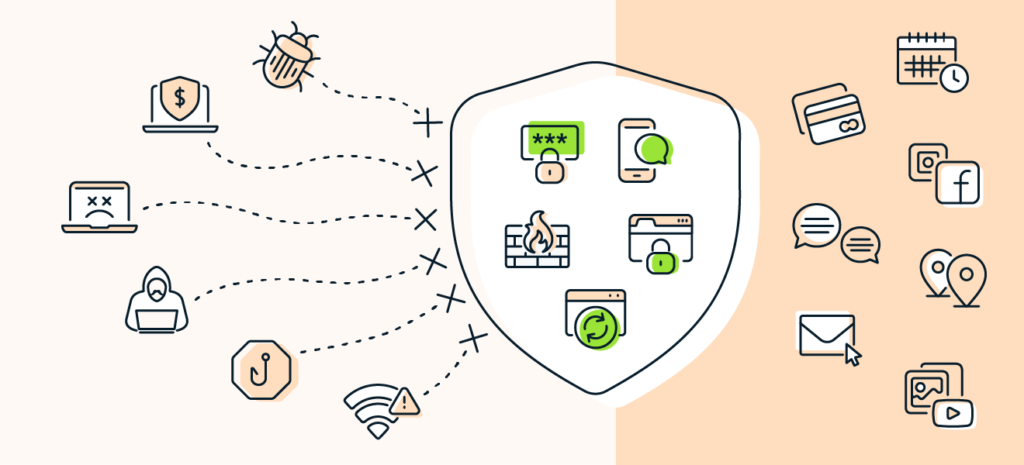
Online security refers to the practices, technologies, and precautions used to protect devices, accounts, networks, and personal information from digital threats. It includes cybersecurity measures such as secure authentication, data protection, safe browsing, and network security.
The main purpose of online security is to prevent unauthorised access, data theft, financial fraud, identity misuse, and other cyber incidents.
Online security applies to several areas:
- Device security: Protecting smartphones, computers, tablets, and connected devices.
- Account security: Preventing unauthorised access to email, social media, banking, and other accounts.
- Network security: Keeping internet connections and Wi-Fi networks protected.
- Data privacy: Controlling how personal information is collected, stored, and shared.
- Browsing security: Avoiding malicious websites, suspicious downloads, and unsafe links.
Understanding these areas helps users build safer digital habits.
Why Is Digital Privacy Important?
Digital privacy refers to how personal information is collected, used, stored, and shared online. Whenever users create accounts, make purchases, install applications, or browse websites, they may share information such as names, email addresses, phone numbers, location details, and payment information.
If this information is exposed or misused, it can lead to identity theft, financial loss, unwanted tracking, and privacy violations.
<AsyncImage query=”digital privacy cybersecurity concept laptop smartphone padlock shield protection” aspectRatio=”16:9″ width=”100%”/>
Protecting digital privacy helps users:
- Keep personal and financial information secure.
- Reduce the risk of identity theft.
- Prevent unauthorised access to online accounts.
- Control the information shared with websites and applications.
- Reduce exposure to online scams and suspicious activities.
- Maintain greater control over their digital identity.
Digital privacy is especially important when using online banking, shopping platforms, social media, cloud storage, and professional communication services.
10 Essential Online Security Tips to Protect Your Devices
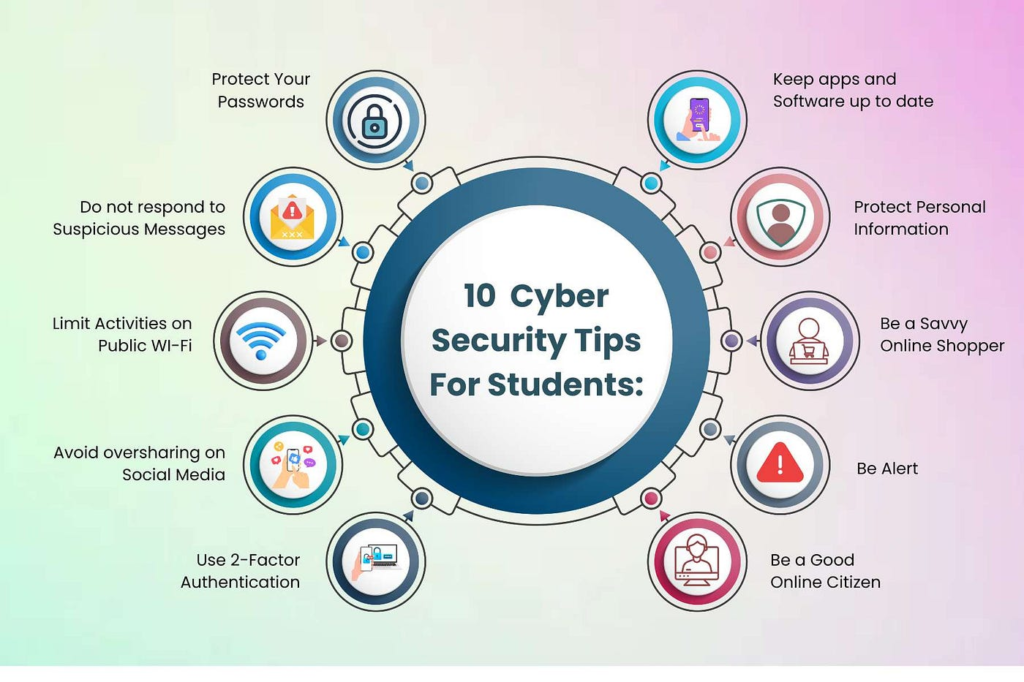
Improving online security does not always require advanced technical knowledge. A few consistent habits can help protect personal devices and digital accounts.
1. Create Strong and Unique Passwords
Passwords are one of the first lines of defence against unauthorised account access. Using simple passwords such as birthdays, names, or common number combinations can make accounts easier to compromise.
Create long, unique passwords for different accounts. Avoid reusing the same password across email, banking, shopping, and social media platforms.
A password manager can help generate and securely store complex passwords. This reduces the need to remember multiple combinations.
Important password practices:
- Use long passwords or passphrases.
- Avoid personal information that others can easily discover.
- Never reuse important account passwords.
- Do not share passwords through unsecured messages.
- Change passwords immediately if an account may have been compromised.
2. Enable Two-Factor Authentication
Two-factor authentication (2FA) adds another verification step when signing in to an account. In addition to a password, users may need to enter a one-time code, approve a login request, or use another authentication method.
Even if someone discovers your password, 2FA can make unauthorised access more difficult.
Whenever available, enable multi-factor authentication on important accounts, particularly email, financial services, cloud storage, and social media.
3. Keep Your Devices and Applications Updated
Software updates often include security patches that fix vulnerabilities discovered by developers and security researchers. Running outdated operating systems or applications can leave devices exposed to known security problems.
Enable automatic updates where practical and regularly check for updates to:
- Operating systems.
- Web browsers.
- Mobile applications.
- Security software.
- Device firmware.
- Internet-connected devices.
Download updates through official settings or trusted sources rather than unfamiliar links.
4. Avoid Suspicious Links and Phishing Emails
Phishing is a common cyberattack technique in which criminals attempt to trick users into revealing sensitive information. Fraudulent emails, text messages, websites, and social media messages may appear to come from trusted organisations.
These messages can request passwords, payment details, verification codes, or urgent account actions.
<AsyncImage query=”phishing cybersecurity awareness suspicious email laptop warning shield” aspectRatio=”16:9″ width=”100%”/>
Before clicking a link or opening an attachment, check the sender and destination carefully. Be cautious of unexpected messages that create urgency, offer unrealistic rewards, or threaten account suspension.
Remember: Never share passwords, banking PINs, or one-time passwords with someone who contacts you unexpectedly.
5. Use Secure Wi-Fi Connections
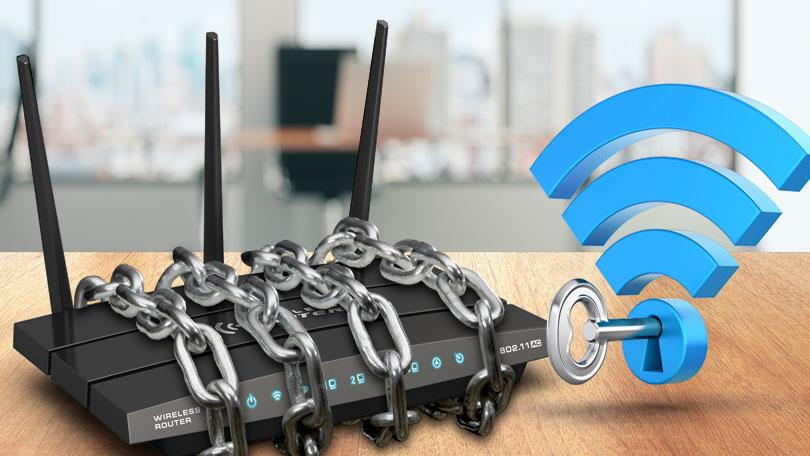
Public Wi-Fi networks in cafes, airports, hotels, and other shared locations can create security risks, especially when networks are poorly protected or impersonated.
Avoid accessing sensitive accounts through unfamiliar networks when possible. If you must use public Wi-Fi, use trusted websites and applications, keep your device firewall enabled, and consider a reputable VPN.
At home, secure your Wi-Fi router with a strong administrator password and modern encryption settings. Change default login credentials and keep router firmware updated.
6. Install Trusted Security Software
Security software can help identify malware, suspicious downloads, and other digital threats. Depending on the product, it may provide real-time protection, firewall features, web protection, and security alerts.
Use reputable security tools and download them from official websites or trusted application stores. Keep protection features updated and avoid installing multiple overlapping security products without understanding how they work together.
7. Review App Permissions
Applications may request access to your camera, microphone, contacts, location, storage, and other device features. Some permissions are necessary for an application’s functionality, while others may not be relevant.
Review application permissions regularly and remove access that is not required.
For example, a basic calculator application generally does not need access to your contacts or microphone. Checking permissions can help reduce unnecessary data collection.
8. Back Up Important Data
Data backups help protect important files against accidental deletion, hardware failure, ransomware, and other unexpected incidents.
Create regular backups of important documents, photos, videos, and work files. Use trusted cloud storage or an external drive, depending on your needs.
For stronger protection, maintain a backup that is not continuously connected to your main device. This can help reduce the risk of malware affecting both the original files and their backups.
9. Browse Websites Carefully
Before entering personal information or payment details, check that the website address is correct and uses HTTPS. HTTPS encrypts information exchanged between your browser and the website, but it does not guarantee that a website itself is legitimate.
Be careful with unfamiliar websites, unexpected redirects, fake download buttons, and offers that appear too good to be true.
Avoid downloading software, documents, or media files from unverified sources.
10. Log Out of Shared Devices
Using computers in libraries, offices, hotels, or internet cafes can expose accounts if sessions remain active.
Always sign out of accounts after using shared devices. Avoid saving passwords in public browsers, and never leave sensitive documents or personal information accessible to other users.
If you accidentally leave an account signed in, use its official account settings to sign out of other active sessions where that feature is available.
Common Online Security Threats You Should Know
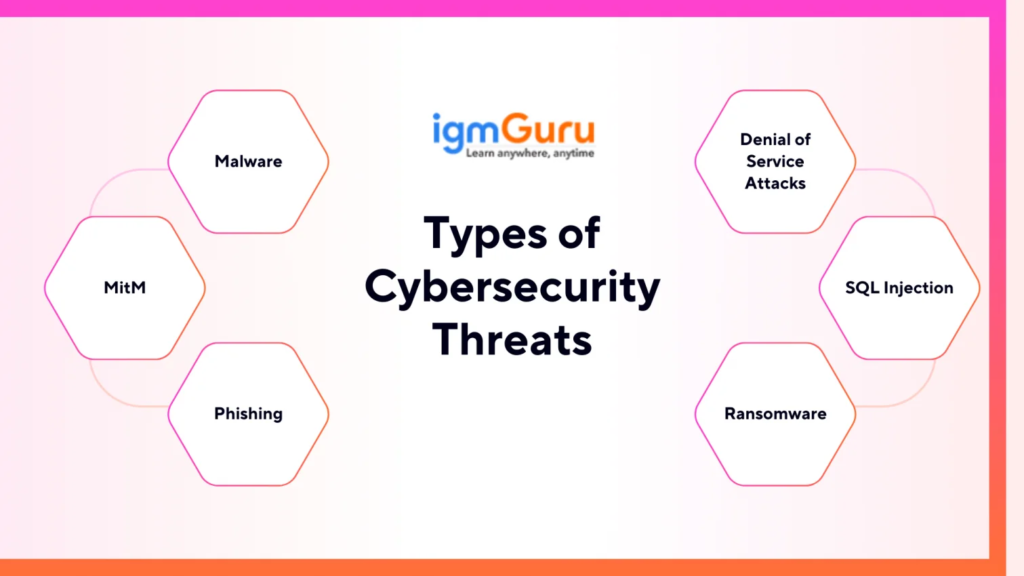
Understanding common cyber threats makes it easier to recognise warning signs and respond appropriately.
<AsyncImage query=”cybersecurity threats illustration phishing malware ransomware identity theft digital warning” aspectRatio=”16:9″ width=”100%”/>
| Cyber Threat | What It Means | How to Reduce the Risk |
|---|---|---|
| Phishing | Fake messages designed to steal information | Verify senders and avoid suspicious links |
| Malware | Harmful software that affects devices | Use trusted downloads and updated security software |
| Ransomware | Malware that can lock or encrypt files | Maintain secure backups and update systems |
| Identity Theft | Misuse of personal information | Protect sensitive details and monitor accounts |
| Spyware | Software that secretly collects information | Install trusted applications and review permissions |
| Password Attacks | Attempts to discover or steal passwords | Use unique passwords and multi-factor authentication |
| Fake Websites | Fraudulent websites designed to deceive users | Check website addresses before sharing information |
Phishing Attacks
Phishing messages often imitate banks, delivery services, government organisations, and popular online platforms. They may ask users to verify accounts or make urgent payments.
Always access important services through their official websites or applications instead of following unexpected message links.
Malware and Ransomware
Malware includes harmful programs that may steal information, damage files, or interfere with device operations. Ransomware is a type of malware that can encrypt files and demand payment for their recovery.
Regular updates, trusted software, cautious downloads, and secure backups are important protective measures.
Identity Theft
Identity theft occurs when someone uses another person’s personal information without permission. Stolen information may be used for fraudulent transactions, fake accounts, or other harmful activities.
Avoid sharing unnecessary personal details online and monitor important financial and digital accounts for unusual activity.
Online Security Best Practices for Smartphones
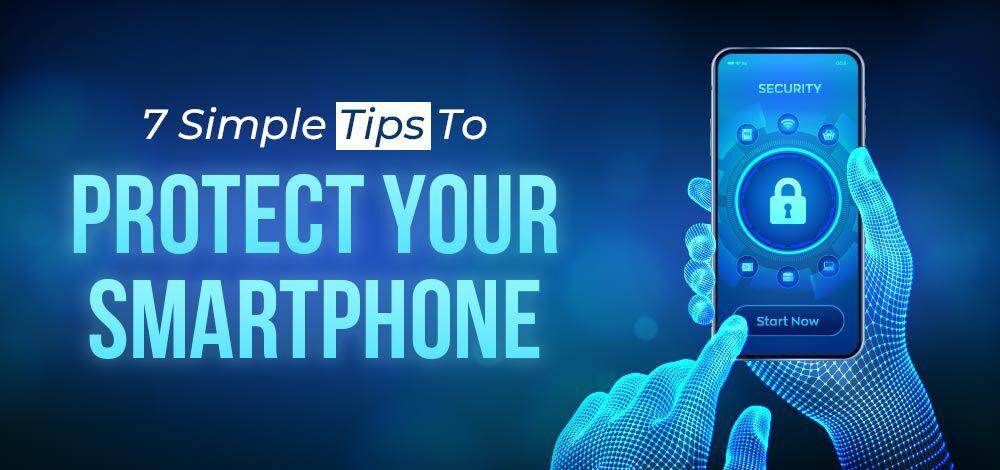
Smartphones contain personal messages, photographs, contacts, payment applications, and account information. Protecting them is an important part of digital privacy.
<AsyncImage query=”smartphone mobile cybersecurity lock screen fingerprint authentication digital protection” aspectRatio=”16:9″ width=”100%”/>
Follow these practices to improve smartphone security:
- Set a strong screen lock using a PIN, password, or supported biometric authentication.
- Install applications only from trusted sources.
- Keep the operating system and applications updated.
- Review permissions for location, camera, microphone, and contacts.
- Enable device-finding and remote-lock features where available.
- Avoid connecting to unknown Bluetooth devices.
- Do not open unexpected attachments or suspicious messages.
- Remove applications that are no longer needed.
If your smartphone is lost or stolen, use the official device-finding service to locate, lock, or erase it when appropriate. Contact your mobile service provider and financial institutions if sensitive accounts or payment services may be at risk.
How to Protect Your Privacy on Social Media
Social media platforms make it easy to communicate and share experiences. However, sharing too much personal information can create privacy and security concerns.
<AsyncImage query=”social media privacy settings smartphone account protection digital security” aspectRatio=”16:9″ width=”100%”/>
Consider the following precautions:
Check privacy settings: Review who can see your posts, profile details, contact information, and personal photographs.
Limit location sharing: Avoid publicly sharing your live location or detailed travel plans.
Be selective with friend requests: Fake profiles may attempt to collect personal information or distribute harmful links.
Avoid sharing sensitive information: Do not publish passwords, financial details, identity documents, or confidential work information.
Enable login alerts: Where available, activate notifications for unfamiliar sign-in attempts.
Review connected applications: Remove third-party applications that no longer need access to your social media account.
These steps help you maintain better control over your digital presence.
Online Security Checklist for Everyday Users
Use this checklist to review your current online security habits.
| Security Practice | Recommended Action |
|---|---|
| Passwords | Use strong and unique passwords |
| Authentication | Enable two-factor authentication |
| Software | Install security updates regularly |
| Check suspicious messages carefully | |
| Wi-Fi | Secure home networks and use caution on public Wi-Fi |
| Applications | Review permissions and install trusted apps |
| Backups | Maintain regular backups of important files |
| Browsing | Verify website addresses before sharing information |
| Social Media | Review privacy and account settings |
| Device Access | Lock devices and sign out of shared computers |
Regularly reviewing this checklist can help identify weak areas and improve your overall digital security.
What to Do If Your Online Account Is Hacked
Discovering suspicious activity on an account can be stressful, but taking prompt action can help reduce further damage.
- Change the affected password using the official website or application.
- Secure the email account connected to the affected service.
- Enable multi-factor authentication if it is not already active.
- Sign out of unfamiliar devices and active sessions.
- Check recovery email addresses, phone numbers, and account settings.
- Review recent transactions or activity for anything unusual.
- Contact the official support team if you cannot regain access.
- Inform your bank or payment provider if financial information may be affected.
In India, cybercrime incidents can be reported through the official National Cyber Crime Reporting Portal at cybercrime.gov.in. For financial cyber fraud, the national helpline 1930 can be used to report incidents promptly.
Do not trust unsolicited callers or messages claiming they can recover stolen money in exchange for a fee.
The Future of Online Security and Digital Privacy
Technology continues to evolve, and online security practices must evolve with it. Artificial intelligence, cloud computing, connected devices, and digital payment systems are creating new opportunities as well as new security challenges.
AI-powered security systems can help identify unusual activity, detect suspicious patterns, and support faster threat analysis. At the same time, cybercriminals may misuse AI to create convincing phishing messages, fake content, and impersonation attempts.
As digital services become more connected, users and organisations will need to focus on stronger authentication, secure software development, regular updates, privacy awareness, and responsible data management.
Cybersecurity is not a one-time activity. It requires regular attention, informed decisions, and consistent digital habits.

Best Software Tools to Improve Productivity in 2026
Productivity is no longer just about working harder or spending more hours at a desk….
Online Security Tips: Protect Your Devices and Digital Privacy
The internet has made communication, shopping, banking, education, entertainment, and business activities easier than ever….

How Technology Is Changing Everyday Life in 2026
Technology has become an essential part of everyday life. From using smartphones to communicate with…

Best Software 2026: Top Tools for Work, Business & Productivity
Software has become an essential part of modern life, helping people work faster, manage businesses,…

Smart Home Technology 2026: Best Devices for a Smarter Home
Smart home technology has become a practical part of everyday life. What once seemed like…

Best Cloud Software for Businesses and Teams in 2026
Think about how much of your work happens online today. Files are shared through links,…