
Let’s skip the marketing fluff. You’ve probably opened five different browser tabs trying to figure out which code editor isn’t going to lag, crash your RAM, or lock you into a nightmare setup process.
Here is the cold, hard reality: there is no single “best” editor. There is only the right tool for what you are actually trying to build today.
Are you hammering out React components? Wrangling massive Java enterprise backends? Letting AI draft half your boilerplate? Or just trying to fix a single config file without waiting twelve seconds for an IDE to load?
Let’s cut through the noise and break down what developers are actually using in 2026, why they use it, and what you should pick based on your actual daily workflow.
The Quick Breakdown: Which One Should You Download?
If you just want a quick recommendation so you can get back to typing code, look at this breakdown:
| Software | Best Used For | The Real Pros | The Honest Cons | Cost |
| VS Code | The universal default for Web & Scripting | Endless extensions, huge community, solid free experience. | Can turn into a RAM hog if you bloat it with plugins. | Free |
| Cursor | AI-first & Agentic coding | Deep codebase awareness; rewrites multiple files easily. | Monthly pricing scales fast once you burn through credits. | Free tier / $20 mo |
| IntelliJ IDEA | Heavyweight Java & Kotlin | Refactoring tools and context completion that rarely fail. | Heavy system resource usage; slow cold starts. | Free Community / Paid Ultimate |
| Zed | Pure speed & lightweight editing | Blazing fast (written in Rust), GPU accelerated, zero latency. | Smaller extension ecosystem than VS Code. | Free |
| PyCharm | Dedicated Python & Data Science | Out-of-the-box virtual environment management, database tools. | Overkill if you just write short automation scripts. | Free Community / Paid Professional |
| Visual Studio 2022 | Heavy C# / .NET & C++ | Incredible enterprise-grade step-debugging and profilers. | Windows-centric, massive install size. | Free Community / Paid Enterprise |
| Sublime Text | Quick file edits & distraction-free work | Instant launch times, handles massive log files without breaking. | Lacks deep out-of-the-box IDE features. | Paid license (eval version free) |
1. Visual Studio Code: The Default Pick for a Reason
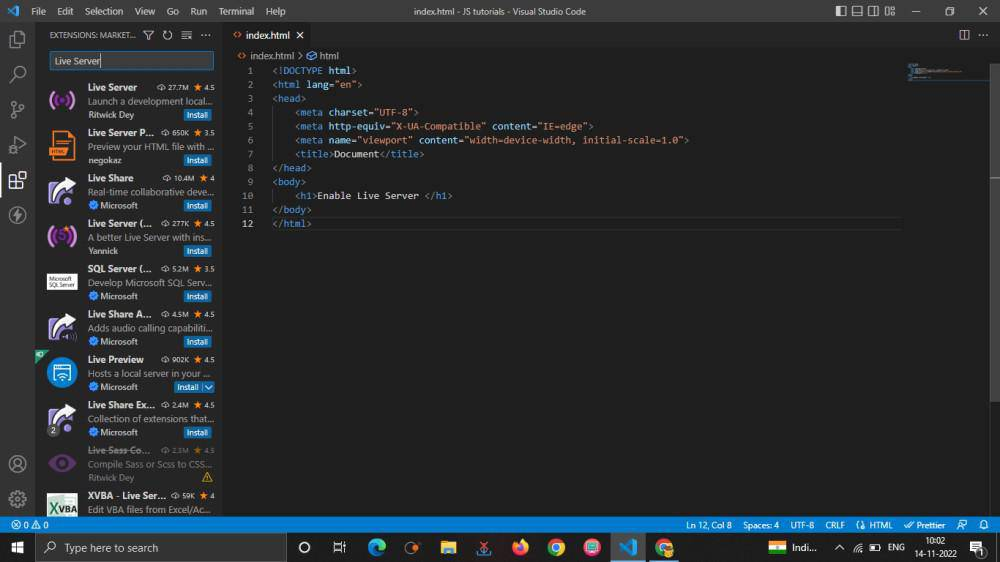
There’s a reason VS Code still sits on top of every developer usage survey. It isn’t because it’s the absolute fastest editor, nor because it has the most elegant default interface. It wins because it just works for almost everything.
When you run into a strange bug in VS Code, thousands of developers have already hit it, solved it, and posted the fix on GitHub or Stack Overflow. Whether you’re configuring a React build, tweaking a Docker container, or running a Go script, there’s an extension built specifically for what you are trying to do.
┌─────────────────────────────────────────────────────────┐
│                    THE VS CODE TRADEOFF                 │
├────────────────────────────┬────────────────────────────┤
│ WHAT MAKES IT GREAT        │ WHAT SUCKS ABOUT IT        │
├────────────────────────────┼────────────────────────────┤
│ • Massive extension market │ • Built on Electron (RAM   │
│ • Custom keyboard shortcuts│   hungry with 20+ plugins) │
│ • Built-in terminal & Git  │ • Out-of-the-box experience│
│ • Runs everywhere          │   feels a bit bare-bones   │
└────────────────────────────┴────────────────────────────┘
- Best for: Web developers, full-stack engineers, and anyone who wants one single editor for multiple languages.
- The Reality Check: Keep your extension list clean. If you install 40 plugins you don’t use, VS Code will start feeling as sluggish as a full-blown enterprise IDE.
2. Cursor: The AI-Native Powerhouse

If you find yourself constantly copying code back and forth to an AI browser tab, Cursor was built to eliminate that friction.
Instead of treating AI as a side panel extension that only sees the current file, Cursor is a fork of VS Code that indexes your entire codebase. You can ask it to refactor a backend route, update a database model, and fix the corresponding frontend form—and it will propose edits across all three files simultaneously.
  Prompt: "Update API endpoint to use JWT auth"
                      │
                      ▼
  ┌───────────────────────────────────────┐
  │         Cursor Agent Workspace        │
  ├───────────────────────────────────────┤
  │  [Modified]  /routes/auth.js          │
  │  [Modified]  /middleware/verify.js    │
  │  [Created]   /tests/auth.test.js      │
  └───────────────────────────────────────┘
- Best for: Engineers who want an AI agent deeply integrated into their daily refactoring workflow.
- The Reality Check: Because it’s a VS Code fork, your themes and keybindings transfer over instantly. However, once you exhaust your monthly fast AI credits, subscription costs add up quickly.
3. JetBrains Suite (IntelliJ IDEA & PyCharm): The Heavy Machinery

Sometimes a lightweight text editor doesn’t cut it. When you are working inside a massive monorepo with thousands of classes, complex dependency injections, and intricate build pipelines, JetBrains tools are unmatched.
- IntelliJ IDEA: The undisputed king for Java and Kotlin developers. Its code navigation, automated refactoring, and static analysis tools catch errors before you even run your build scripts.
- PyCharm: If Python is your primary language, PyCharm provides built-in support for Django, Flask, Jupyter Notebooks, and database management without needing third-party extensions.
- Best for: Enterprise backends, large-scale Java/Kotlin or Python applications.
- The Reality Check: JetBrains IDEs are resource-heavy. If you’re running them on an entry-level laptop with limited RAM, expect fan noise and occasional lag spikes when indexing large projects.
4. Zed: The Speed Monster
If you hate input lag and can’t stand electron-based app sluggishness, Zed deserves your attention.
Written from scratch in Rust, Zed utilizes your computer’s GPU to render text instantly. It opens instantly, navigates massive files without stuttering, and includes native support for multiplayer collaborative editing.
- Best for: Developers who value raw performance, minimal distraction, and real-time pair programming.
- The Reality Check: Zed is younger than VS Code, meaning its extension library is still catching up. If your daily workflow relies on niche plugins, test it out before completely switching.
5. Visual Studio 2022: The .NET & C++ Titan
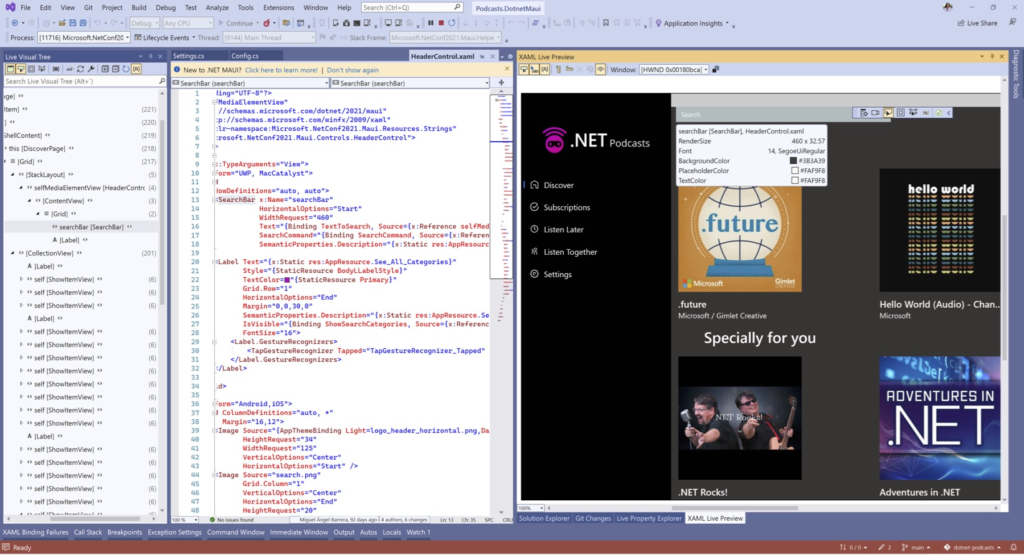
Don’t confuse Visual Studio with VS Code. Visual Studio 2022 is Microsoft’s flagship IDE built for heavy-duty C++, C#, and .NET development.
It features advanced memory profiling, deep diagnostic tools, and built-in integrations for enterprise Windows services.
- Best for: Windows desktop development, large .NET enterprise applications, and complex C++ game engines.
- The Reality Check: It is a massive download that consumes significant disk space. It’s designed for heavy engineering tasks, not for quickly editing a single script file.
6. Windsurf IDE: The AI Co-Pilot That Actually Drives
If Cursor feels a bit too manual with its @-mentions and constant prompts, Windsurf (built by Codeium) takes a completely different approach.
Instead of just acting as a smart autocomplete sidebar, Windsurf uses what it calls Cascade—an AI agent mode that operates alongside you in real-time. You give it a high-level goal (like “Set up user authentication using Clerk and create a protected dashboard route”), and Windsurf reads your file structure, plans out the edits, creates the necessary files, runs terminal commands, and fixes linting errors on its own.
┌─────────────────────────────────────────────────────────┐
│              WINDSURF (CASCADE AGENT FLOW)              │
├─────────────────────────────────────────────────────────┤
│ 1. User inputs goal: "Add OAuth login and dark mode"   │
│ 2. Cascade scans directory structure automatically      │
│ 3. Writes new components & modifies app routes          │
│ 4. Executes terminal tests & fixes inline errors        │
└─────────────────────────────────────────────────────────┘
- Best for: Developers who want an AI partner that handles multi-step boilerplate generation with minimal hand-holding.
- The Reality Check: Because it acts with high autonomy, you still need to review its code carefully. If left unchecked on complex codebases, it can occasionally make confident changes that break existing business logic.
7. Neovim & Helix: For Keyboard Purists Who Hate Mice
Not everyone wants heavy desktop GUIs or AI auto-generating hundreds of lines of code. A growing corner of the developer community is moving back to terminal-first editors like Neovim and Helix.
Terminal editors run directly inside your shell, taking up almost zero memory and launching in milliseconds.
  ┌───────────────────────────────────────────────────────┐
  │  NEOVIM / HELIX TERMINAL WORKFLOW                    │
  ├───────────────────────────────────────────────────────┤
  │ • Zero mouse usage (100% keyboard navigation)         │
  │ • Instant startup times (0.02s)                       │
  │ • Built-in LSP (autocomplete, jump-to-definition)     │
  │ • Works seamlessly over SSH and inside Docker         │
  └───────────────────────────────────────────────────────┘
- Neovim (Lua-powered): Highly customizable using pre-built setups like LazyVim. With modern plugins (like
avante.nvim), you can even run AI sidebars inside your terminal. - Helix: Written in Rust with zero configuration required. It comes with Language Server Protocol (LSP) support, syntax highlighting, and multi-cursor editing right out of the box.
- Best for: Linux power users, DevOps engineers editing files over SSH, and developers who suffer from wrist strain and want to ditch the mouse entirely.
- The Reality Check: The modal editing learning curve is brutal for the first two weeks. If your productivity is measured by immediate daily output, don’t switch during a tight project deadline.
How to Know It’s Time to Switch Your Code Editor
Developers waste weeks “tool hopping” when they should just be shipping code. How do you know when your current editor is actually holding you back?
┌─────────────────────────────────────────────────────────────────────────┐
│                    WHEN SHOULD YOU SWITCH EDITORS?                      │
├────────────────────────────┬────────────────────────────────────────────┤
│ Your Current Friction Points │ The Tool You Should Switch To            │
├────────────────────────────┼────────────────────────────────────────────┤
│ • My editor stutters when  │ Switch to **Zed** or **Helix** for GPU-    │
│   opening large files      │ accelerated or terminal speed.             │
├────────────────────────────┼────────────────────────────────────────────┤
│ • I spend 30% of my day    │ Switch to **Cursor** or **Windsurf** to   │
│   writing routine boiler-  │ automate multi-file refactoring.           │
│   plate code               │                                            │
├────────────────────────────┼────────────────────────────────────────────┤
│ • Refactoring complex Java │ Switch to **IntelliJ IDEA** or **Visual    │
│   or .NET classes breaks   │ **Studio 2022** for true IDE intelligence. │
│   my build constantly      │                                            │
└────────────────────────────┴────────────────────────────────────────────┘
The Verdict: How to Build Your Stack
You don’t have to limit yourself to just one tool. Most senior developers keep two primary editors on their machines:
- A Primary Daily Driver: A feature-rich environment like VS Code, Cursor, Windsurf, or IntelliJ where you spend 80% of your time building features and running test suites.
- A Lightweight Speed Demon: A lightning-fast editor like Zed, Sublime Text, or Neovim set as your default application to quickly open log files, tweak JSON configs, or inspect git diffs.
Pick the combination that removes friction from your specific day-to-day workflow, keep your extension list clean, and focus on the code itself.
What Actually Matters When Choosing Your Setup?

Before spending hours customizing settings and themes, focus on these four core factors:
- Startup & Execution Speed: An editor shouldn’t make you wait 10 seconds every time you open a file. If you’re constantly jumping between small tasks, keep a lightweight editor like Sublime Text or Zed handy.
- Ecosystem & Community: If you use a rare framework or niche language, stick to VS Code. Someone has almost certainly already written the language server or syntax highlighter for it.
- Refactoring Capabilities: If your daily work involves renaming functions across hundreds of files or tracking complex class hierarchies, full IDEs like IntelliJ or Visual Studio will save hours of manual fixes.
- Team Standards: If your entire team shares a single set of linter configs, extensions, and workspace settings, following your team’s existing setup is often smoother than fighting custom configurations.
Best Online Privacy & Security Tools in 2026: Top Picks
Let’s be honest about what taking back your digital privacy actually feels like. You read…

Semiconductor Technology Trends 2026: The Future of Chip Innovation
If you are reading this on a phone, a laptop, or even a tablet mounted…

Online Shopping Trends 2026: Smart Ways to Shop for Tech
Let’s be honest about buying electronics online Shopping right now: the sheer volume of options…
Best Coding Software for Developers in 2026: Top Picks
Let’s skip the marketing fluff. You’ve probably opened five different browser tabs trying to figure…

Gaming Accessories 2026: Best Gadgets for a Better Gaming Setup
Let’s be completely honest for a second—building a killer gaming setup can feel like a…
Best Apps & Software in 2026: Top Tools You Need to Know
Let’s be completely real for a second—the app store feels exhausting right now. Software Every…