
Let’s be completely real for a second—the app store feels exhausting right now. Software Every single day, three new “game-changing” tools launch on social media, each claiming it will fix your life, clear your inbox, and organize your chaotic thoughts. Need to draft a quick email? There’s an app for that. Want to keep track of your daily habits? Another app. Trying to edit a short video, backup your photos, secure your passwords, or test out a shiny new AI bot? You’re easily looking at dozens of competing options for every single click.
The struggle in 2026 isn’t finding a good app anymore. The real headache is figuring out which ones are actually worth keeping on your phone or laptop.
   ┌─────────────────────────────────────────────────────────┐
   │                  THE 2026 APP TRAP                      │
   ├─────────────────────────────────────────────────────────┤
   │  Too Many Apps  ──>  Notification Overload ──> Burnout   │
   └─────────────────────────────────────────────────────────┘
                                │
                                ▼
   ┌─────────────────────────────────────────────────────────┐
   │                  THE SMART SOLUTION                     │
   ├─────────────────────────────────────────────────────────┤
   │  5-6 Core Tools ──>  Clear Workflows  ──> Real Results   │
   └─────────────────────────────────────────────────────────┘
Instead of drowning you in a list of 50 random downloads you’ll delete by next Tuesday, let’s break down the exact software setups that make sense today, what features matter, and how to build a clean digital workspace that keeps you moving forward without driving you crazy.
1. AI Apps Are Everywhere—But Don’t Fall for the Hype
AI is no longer a separate, sci-fi category; it is practically baked into every piece of software we open in 2026.
Your note-taking app can suddenly write summaries, your calendar wants to re-arrange your meetings on the fly, and your email client offers to answer your boss for you.
The heavy hitters—like ChatGPT, Claude, and Perplexity—each bring unique strengths to the table:
- ChatGPT: Perfect for everyday brainstorming, quick drafts, and general problem-solving.
- Claude: Exceptional at making sense of massive documents, complex logic, and long PDF files.
- Perplexity: Feels like a modern, conversational search engine that actually cites its sources so you can double-check facts.
  [ ChatGPT ] ──────> Best for fast brainstorming & daily writing
  [ Claude ]  ──────> Best for long documents & logical breakdown
  [ Perplexity ] ───> Best for research with actual source links
Here’s the plain truth: an app slapping an “AI” badge on its logo doesn’t make it useful.
If a feature saves you twenty minutes of tedious clicking, fantastic. But if it just adds a shiny new button to your screen that you accidentally click twice a month, ignore it. Don’t pay a monthly subscription for flashy gimmicks you never asked for.
2. Productivity Apps That Save Time (Instead of Wasting It)
Productivity tools are supposed to give you time back, yet so many people end up spending their entire afternoon organizing their task managers instead of doing actual work.
When you have one app for your daily to-do list, another for long-term projects, a third for quick voice notes, and a fourth for your calendar, you haven’t built a productivity system—you’ve built a second job.
┌─────────────────────────────────────────────────────────────────────────┐
│                    OUR 2026 SOFTWARE DIRECTORY                          │
├─────────────────┬──────────────────┬────────────────────────────────────┤
│ Category        │ Popular Tools    │ What It Actually Does Best         │
├─────────────────┼──────────────────┼────────────────────────────────────┤
│ AI Chat & Search│ ChatGPT, Claude, │ Fast writing, deep research, and   │
│                 │ Perplexity       │ making sense of huge notes         │
├─────────────────┼──────────────────┼────────────────────────────────────┤
│ Workspace &     │ Notion, Obsidian,│ One home for your notes, wiki,     │
│ Knowledge       │ Apple Notes      │ and messy brain dumps              │
├─────────────────┼──────────────────┼────────────────────────────────────┤
│ Daily Planning  │ Todoist, Google  │ Managing deadlines without getting │
│ & Tasks         │ Calendar, Motion │ overwhelmed by notifications       │
├─────────────────┼──────────────────┼────────────────────────────────────┤
│ Team Chat &     │ Slack, Microsoft │ Keeping group communication in one  │
│ Collaboration   │ Teams, Zoom      │ searchable place                   │
├─────────────────┼──────────────────┼────────────────────────────────────┤
│ Security &      │ 1Password, Bit-  │ Remembering secure credentials so  │
│ Passwords       │ warden, Proton   │ you don't use "Password123"        │
├─────────────────┼──────────────────┼────────────────────────────────────┤
│ Automation &    │ Zapier, Make,    │ Moving data between apps without   │
│ Workflow        │ Apple Shortcuts  │ copy-pasting all day               │
└─────────────────┴──────────────────┴────────────────────────────────────┘
The key to keeping your sanity is giving every app a strict, single job. If Todoist handles your daily errands, don’t start dropping project notes in it. Keep your notes in a designated workspace and your dates strictly on your calendar. Simple boundaries prevent messy overlap.
3. The Power of an “All-in-One” Workspace
If your digital life feels like a pile of unorganized files—scattered across WhatsApp stars, desktop screenshots, buried Google Drive folders, and half-baked drafts in your phone’s default notes app—you know the pain of trying to find something you wrote three months ago.
This is where workspace platforms like Notion or Obsidian completely change the game.
  [ Screenshots ] ──┐
  [ Phone Notes ]  ──┼──>  [ One Digital Workspace ]  ──>  Fast Search & Peace of Mind
  [ Saved Emails ] ──┘
The real magic of a consolidated workspace isn’t showing off a pretty customized layout on video calls. It’s the peace of mind that comes with knowing exactly where everything lives. When you get a great idea on a random walk, drop it in your workspace inbox. When you need to pull up a receipt or meeting outline later, you hit search and find it in three seconds. That tiny reduction in daily friction adds up to hours of saved energy every month.
4. Keeping Team Communication from Turning into Chaos

Working with a team usually means dealing with a constant stream of messages, shared folders, Zoom links, and sudden deadline changes.
If your team doesn’t set clear ground rules about where things get talked about, you end up drowning in a sea of “Hey, did you see my email?” or “Where did you attach that PDF?” messages.
   Quick Questions & Chat  ────>  Slack / Teams
   Project Progress        ────>  Asana / Trello / Notion
   Final Files & Docs      ────>  Google Drive / OneDrive
A solid team setup is usually built on three clear pillars:
- Chat platforms (Slack or Teams): For fast, informal conversation and quick syncs.
- Project boards (Asana, Trello, or Notion): To track who is doing what, and when it’s due.
- Cloud Storage (Google Drive or OneDrive): For final, organized documents that anyone can pull up on demand.
When everyone agrees on which app does what, work gets done quietly and predictably.
5. Creative Software: Smart Tools for Modern Creators
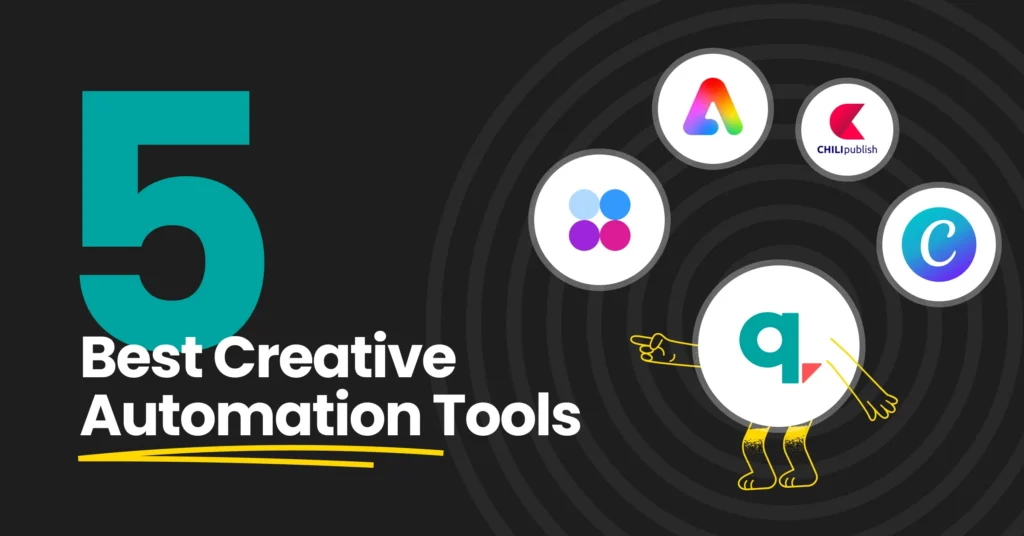
Whether you’re making social media graphics, editing videos, or writing articles, creative software in 2026 has become insanely fast.
Tools like Canva rely on built-in smart tools to remove video backgrounds, generate clean slide layouts, and resize banners with a single click. Meanwhile, video editing tools like Descript let you edit video podcasts simply by editing the text transcript, automatically cutting out long pauses and filler words.
  Traditional Editing: Cut clip manually ──> Move timeline ──> Re-render ──> Export
  Modern Smart Editing: Edit text transcript ──> App cuts video automatically
However, it’s worth keeping a basic reality check in mind: speed is not the same thing as creativity.
An app can help you polish an image or stitch a reel together in record time, but the core idea, the human story, and the personality still have to come from you. Audiences in 2026 can spot lazy, fully automated content from a mile away. Use software to skip the boring, technical grunt work, but keep your human touch on the final product.
6. Cloud Storage & Digital Security Are Non-Negotiable
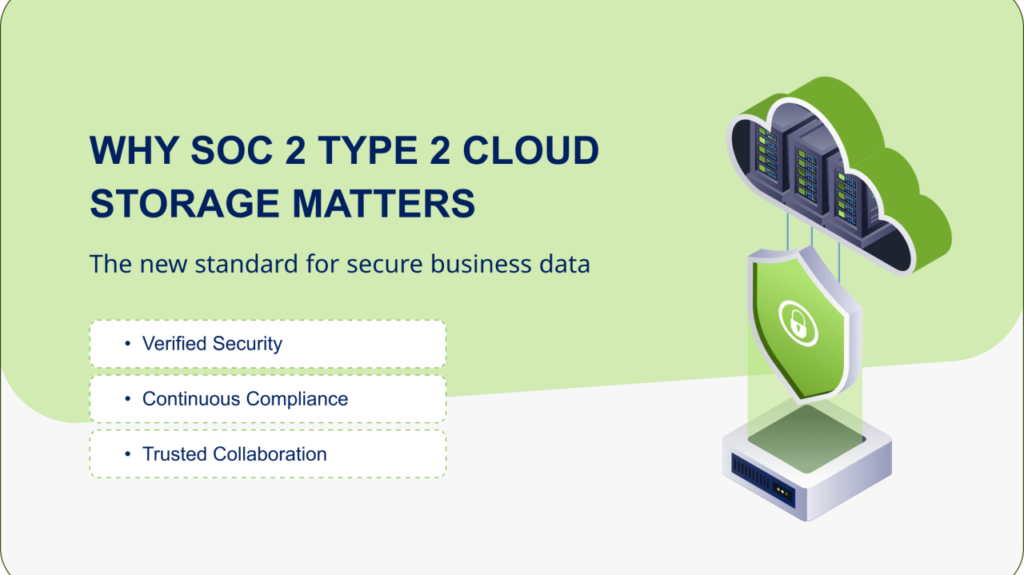
We treat our devices like extensions of our brains, yet millions of people still store critical documents, work files, and priceless memories locally on a single laptop desktop.
┌─────────────────────────────────────────────────────────────────────────┐
│                     THE BASIC DIGITAL PROTECTION STACK                  │
├──────────────────────┬──────────────────────────────────────────────────┤
│ Safety Layer         │ Why You Need It Today                            │
├──────────────────────┼──────────────────────────────────────────────────┤
│ Cloud Storage        │ Protects files if your phone or laptop breaks    │
├──────────────────────┼──────────────────────────────────────────────────┤
│ Password Manager     │ Generates & remembers unique passwords per app   │
├──────────────────────┼──────────────────────────────────────────────────┤
│ Two-Factor (2FA)     │ Stops unauthorized logins even if someone knows  │
│                      │ your password                                    │
└──────────────────────┴──────────────────────────────────────────────────┘
Cloud platforms like Google Drive, iCloud, and Dropbox aren’t just convenient for pulling up files on your phone while traveling—they’re your insurance policy against a lost phone or a fried laptop hard drive.
Alongside cloud backups, taking security seriously is a basic daily requirement. Reusing the same password across four different accounts is asking for trouble. Using a dedicated password manager like 1Password or Bitwarden allows you to generate massive, impossible-to-guess passwords for every single site while only having to memorize one master key yourself. Pair that with a standard authenticator app, and your digital life becomes exponentially safer overnight.
7. Automation: Stop Doing the Same Repetitive Tasks
Automation used to be something only software engineers cared about. Today, zero-code platforms like Zapier and Make have made simple automation accessible to anyone with a browser.
[ New Form Submission ] ──> [ Auto-Save to Sheet ] ──> [ Alert Team on Slack ]
Think about the repetitive tasks you do every single week. Maybe you manually copy lead info from an email into a spreadsheet, re-type client details into a task board, or save email attachments into a specific Drive folder one by one.
With a basic workflow automation:
- An incoming form automatically creates a new row in your spreadsheet.
- A notification instantly pings your team chat.
- A confirmation message fires off to the customer without you opening your email client once.
Start small. Pick one tedious task that makes you sigh every Monday morning and set up a basic connection to handle it automatically.
8. Free vs. Paid Apps: When Should You Spend Money?
You don’t need to hand over $15 a month for every cool utility tool you find online.
Most popular software platforms offer generous free tiers that are more than enough for casual users, students, and freelancers.
  [ Free Tier ] ────> Perfect for personal use, basic notes & light storage
                             │
                             ▼
  [ Paid Upgrade ] ──> Worth it ONLY if it saves 2+ hours weekly or unlocks
                       essential team sharing & unlimited storage
Before you put your credit card details into a new subscription page, ask yourself two simple questions:
- “Will I actually use this app at least three times a week?”
- “Does this paid feature directly save me time or make me money?”
If an app saves you three hours of tedious manual labor every week, paying $10 or $20 a month is a no-brainer investment. But if you’re only opening it twice a month to fiddle with settings, stick to the free plan and keep your money in your pocket.
9. How to Build a Clean App Stack That Actually Works
If you want a streamlined digital setup that keeps you organized without creating unnecessary noise, build your personal stack around these five core categories:
┌─────────────────────────────────────────────────────────────────────────┐
│                       THE LEAN 5-APP FOUNDATION                         │
├─────────────────────────────────────────────────────────────────────────┤
│                                                                         │
│   1. ONE AI Assistant ─────────> (For drafting, summaries & search)    │
│   2. ONE Workspace App ────────> (For notes, documents & projects)      │
│   3. ONE Calendar & Tasks ─────> (For schedule & daily to-dos)          │
│   4. ONE Cloud Storage ────────> (For safe backups & file access)       │
│   5. ONE Password Manager ─────> (For digital protection & safety)      │
│                                                                         │
└─────────────────────────────────────────────────────────────────────────┘
Once you have these five foundational bases covered, stop downloading new apps unless you run into a very specific problem that your current setup cannot handle.
The goal isn’t to look like a tech wizard with three monitors full of widgets and dashboards. The goal is to get your work done smoothly so you can close your laptop, put your phone away, and go live your actual life.
Best Online Privacy & Security Tools in 2026: Top Picks
Let’s be honest about what taking back your digital privacy actually feels like. You read…

Semiconductor Technology Trends 2026: The Future of Chip Innovation
If you are reading this on a phone, a laptop, or even a tablet mounted…
Online Shopping Trends 2026: Smart Ways to Shop for Tech
Let’s be honest about buying electronics online Shopping right now: the sheer volume of options…

Best Coding Software for Developers in 2026: Top Picks
Let’s skip the marketing fluff. You’ve probably opened five different browser tabs trying to figure…
Gaming Accessories 2026: Best Gadgets for a Better Gaming Setup
Let’s be completely honest for a second—building a killer gaming setup can feel like a…
Best Apps & Software in 2026: Top Tools You Need to Know
Let’s be completely real for a second—the app store feels exhausting right now. Software Every…